RunAnywhere React Native SDK Part 1: Chat with LLMs On-Device
Run LLMs Entirely On-Device with React Native
This is Part 1 of our RunAnywhere React Native SDK tutorial series:
- Chat with LLMs (this post) — Project setup and streaming text generation
- Speech-to-Text — Real-time transcription with Whisper
- Text-to-Speech — Natural voice synthesis with Piper
- Voice Pipeline — Full voice assistant with VAD
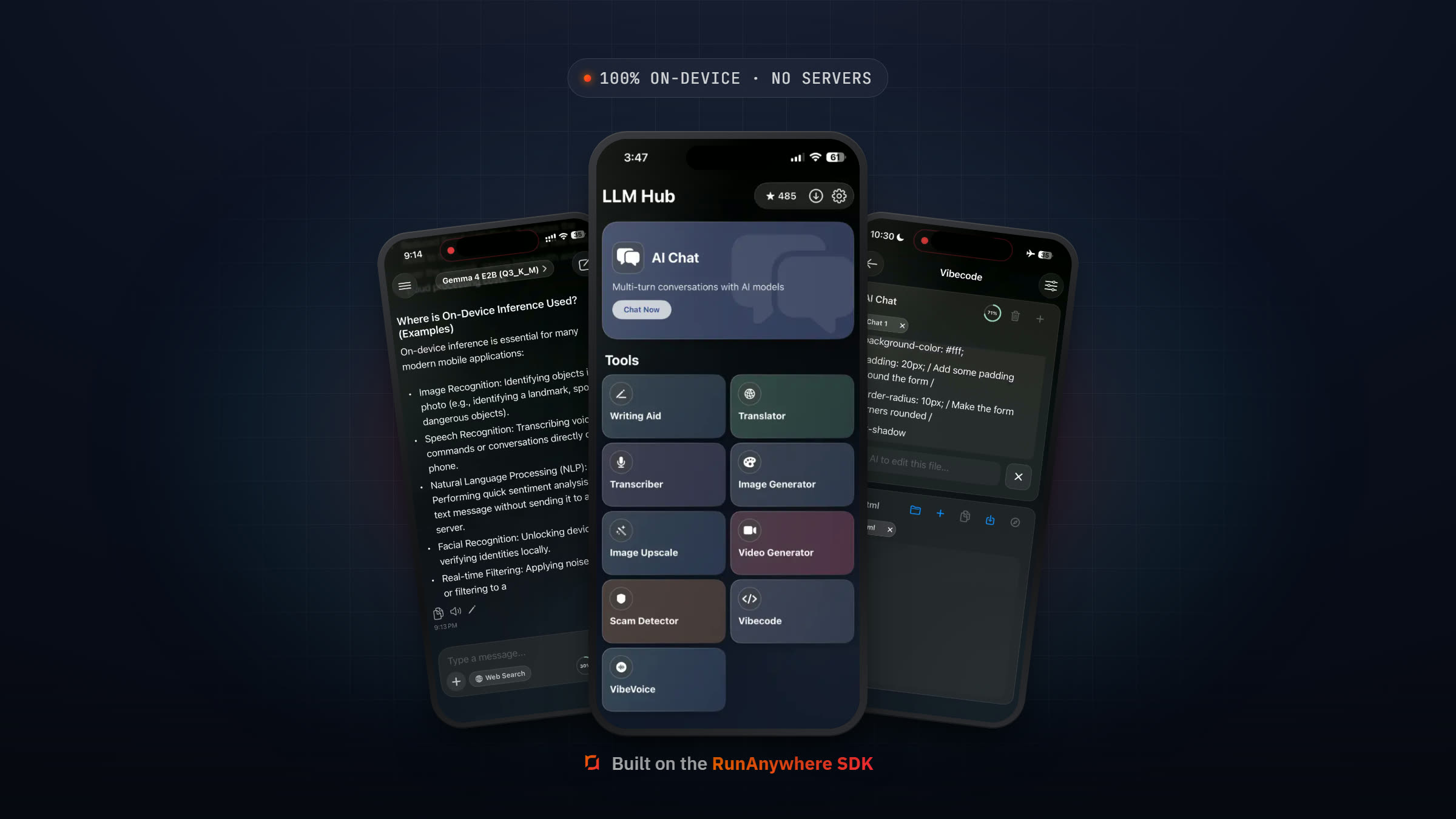
React Native lets you build cross-platform apps with JavaScript and TypeScript. Now, with RunAnywhere, you can add powerful on-device AI capabilities—LLM chat, speech recognition, voice synthesis—all running locally with no cloud dependency.
In this tutorial, we'll set up the SDK and build a streaming chat interface that works offline on both iOS and Android.
Why On-Device AI?
| Aspect | Cloud AI | On-Device AI |
|---|---|---|
| Privacy | Data sent to servers | Data stays on device |
| Latency | Network round-trip | Instant local processing |
| Offline | Requires internet | Works anywhere |
| Cost | Per-request billing | One-time download |
For apps handling sensitive data, on-device processing provides the privacy users expect.
Prerequisites
- Node.js 18+
- React Native CLI or Expo (bare workflow)
- Xcode 15+ (for iOS builds)
- Android Studio with SDK 24+, NDK, and CMake (for Android builds)
- Physical ARM64 device required for Android (emulators won't work—see Android Setup)
- ~250MB storage for the LLM model
Project Setup
1. Create a New React Native Project
1npx react-native init LocalAIPlayground --template react-native-template-typescript2cd LocalAIPlayground

2. Install the RunAnywhere SDK
1npm install @runanywhere/core@0.17.4 @runanywhere/llamacpp@0.17.4 @runanywhere/onnx@0.17.4
3. iOS Configuration
Update your ios/Podfile:
1platform :ios, '15.1'23# Add to the bottom of the file4post_install do |installer|5 installer.pods_project.targets.each do |target|6 target.build_configurations.each do |config|7 config.build_settings['IPHONEOS_DEPLOYMENT_TARGET'] = '15.1'8 end9 end10end
Install pods:
1cd ios && pod install && cd ..
Add microphone permission to ios/LocalAIPlayground/Info.plist:
1<key>NSMicrophoneUsageDescription</key>2<string>This app needs microphone access for voice AI features.</string>
4. Android Configuration
Update android/app/build.gradle:
1android {2 defaultConfig {3 minSdkVersion 24 // Android 7.0+4 }5}
Add permissions to android/app/src/main/AndroidManifest.xml:
1<uses-permission android:name="android.permission.INTERNET" />2<uses-permission android:name="android.permission.RECORD_AUDIO" />
Android Setup (Detailed)
Physical Device Required
Important: The RunAnywhere SDK includes native libraries compiled only for ARM64 (arm64-v8a). Android emulators (x86/x86_64) will NOT work.
If you see this error, you're likely running on an emulator:
1dlopen failed: library "librunanywherecore.so" not found
Set JAVA_HOME
Use Android Studio's bundled JDK (JBR):
macOS:
1export JAVA_HOME="/Applications/Android Studio.app/Contents/jbr/Contents/Home"
Windows (PowerShell):
1$env:JAVA_HOME = "C:\Program Files\Android\Android Studio\jbr"
Windows (CMD):
1set JAVA_HOME=C:\Program Files\Android\Android Studio\jbr
Configure gradle.properties
Copy the example file and configure:
1cp android/gradle.properties.example android/gradle.properties
Ensure these settings in android/gradle.properties:
1hermesEnabled=true2runanywhere.testLocal=false3runanywhere.rebuildCommons=false
Note:
testLocal=falseuses pre-built native libraries from the SDK. Only set totrueif you have the SDK source locally.
Running on Physical Device
- Enable Developer Options: Settings → About Phone → Tap "Build Number" 7 times
- Enable USB Debugging: Settings → Developer Options → USB Debugging
- Connect device:
adb devices(should show your device) - Port forwarding:
adb reverse tcp:8081 tcp:8081 - Start Metro:
npm start - Run app:
npx react-native run-android
Troubleshooting
| Issue | Solution |
|---|---|
| "hermesEnabled" property not found | Copy gradle.properties.example to gradle.properties |
| "Unable to load script" on device | Run adb reverse tcp:8081 tcp:8081 |
| Grey screen after launch | Restart Metro bundler: npm start |
| Native library not found | Ensure you're on a physical ARM64 device, not emulator |
SDK Initialization
The SDK requires a specific initialization order. Update your App.tsx:
1import React, { useEffect, useState } from 'react';2import { SafeAreaView, Text, ActivityIndicator, StyleSheet } from 'react-native';3import { RunAnywhere, SDKEnvironment } from '@runanywhere/core';4import { LlamaCPP } from '@runanywhere/llamacpp';5import { ONNX } from '@runanywhere/onnx';6import { ChatScreen } from './src/screens/ChatScreen';78export default function App() {9 const [isInitialized, setIsInitialized] = useState(false);10 const [error, setError] = useState<string | null>(null);1112 useEffect(() => {13 initializeSDK();14 }, []);1516 async function initializeSDK() {17 try {18 // Step 1: Initialize core SDK19 await RunAnywhere.initialize({20 environment: SDKEnvironment.Development,21 });22 console.log('SDK: RunAnywhere initialized');2324 // Step 2: Register backends BEFORE adding models25 LlamaCPP.register();26 console.log('SDK: LlamaCPP backend registered');2728 ONNX.register();29 console.log('SDK: ONNX backend registered');3031 // Step 3: Register the LLM model32 RunAnywhere.registerModel({33 id: 'lfm2-350m-q4_k_m',34 name: 'LiquidAI LFM2 350M',35 url: 'https://huggingface.co/LiquidAI/LFM2-350M-GGUF/resolve/main/LFM2-350M-Q4_K_M.gguf',36 framework: 'llamacpp',37 memoryRequirement: 250_000_000,38 });39 console.log('SDK: LLM model registered');4041 setIsInitialized(true);42 } catch (e) {43 console.error('SDK initialization failed:', e);44 setError(e instanceof Error ? e.message : 'Unknown error');45 }46 }4748 if (error) {49 return (50 <SafeAreaView style={styles.container}>51 <Text style={styles.errorText}>Error: {error}</Text>52 </SafeAreaView>53 );54 }5556 if (!isInitialized) {57 return (58 <SafeAreaView style={styles.container}>59 <ActivityIndicator size="large" color="#007AFF" />60 <Text style={styles.loadingText}>Initializing AI...</Text>61 </SafeAreaView>62 );63 }6465 return <ChatScreen />;66}6768const styles = StyleSheet.create({69 container: {70 flex: 1,71 justifyContent: 'center',72 alignItems: 'center',73 backgroundColor: '#000',74 },75 loadingText: {76 marginTop: 16,77 color: '#fff',78 fontSize: 16,79 },80 errorText: {81 color: '#ff4444',82 fontSize: 16,83 padding: 20,84 textAlign: 'center',85 },86});
Note: In development mode, no API key is needed—all inference runs on-device. For production with RunAnywhere Cloud routing, provide your API key in the
initialize()call.

Architecture Overview
1┌─────────────────────────────────────────────────────┐2│ RunAnywhere Core │3│ (Unified API, Model Management) │4├───────────────────────┬─────────────────────────────┤5│ LlamaCPP Backend │ ONNX Backend │6│ ───────────────── │ ───────────────── │7│ • Text Generation │ • Speech-to-Text │8│ • Chat Completion │ • Text-to-Speech │9│ • Streaming │ • Voice Activity (VAD) │10└───────────────────────┴─────────────────────────────┘
Downloading & Loading Models
Create src/hooks/useModelLoader.ts:
1import { useState, useCallback } from 'react'2import { RunAnywhere } from '@runanywhere/core'34export function useModelLoader() {5 const [downloadProgress, setDownloadProgress] = useState(0)6 const [isDownloading, setIsDownloading] = useState(false)7 const [isLoaded, setIsLoaded] = useState(false)8 const [error, setError] = useState<string | null>(null)910 const downloadAndLoad = useCallback(async (modelId: string) => {11 setIsDownloading(true)12 setError(null)1314 try {15 // Check if already downloaded16 const isDownloaded = await RunAnywhere.isModelDownloaded(modelId)1718 if (!isDownloaded) {19 // Download with progress tracking20 await RunAnywhere.downloadModel(modelId, (progress) => {21 setDownloadProgress(progress.progress)22 console.log(`Download: ${(progress.progress * 100).toFixed(1)}%`)23 })24 }2526 // Load into memory27 await RunAnywhere.loadModel(modelId)28 setIsLoaded(true)29 console.log('Model loaded successfully')30 } catch (e) {31 setError(e instanceof Error ? e.message : 'Unknown error')32 console.error('Model error:', e)33 } finally {34 setIsDownloading(false)35 }36 }, [])3738 return {39 downloadProgress,40 isDownloading,41 isLoaded,42 error,43 downloadAndLoad,44 }45}
Note: Only one LLM model can be loaded at a time. Loading a different model automatically unloads the current one.
Streaming Text Generation
Create src/screens/ChatScreen.tsx:
1import React, { useState, useEffect, useRef } from 'react';2import {3 View,4 Text,5 TextInput,6 TouchableOpacity,7 FlatList,8 StyleSheet,9 KeyboardAvoidingView,10 Platform,11} from 'react-native';12import { RunAnywhere } from '@runanywhere/core';13import { useModelLoader } from '../hooks/useModelLoader';1415interface Message {16 id: string;17 role: 'user' | 'assistant';18 content: string;19}2021export function ChatScreen() {22 const [messages, setMessages] = useState<Message[]>([]);23 const [inputText, setInputText] = useState('');24 const [isGenerating, setIsGenerating] = useState(false);25 const flatListRef = useRef<FlatList>(null);2627 const { isLoaded, isDownloading, downloadProgress, downloadAndLoad } = useModelLoader();2829 useEffect(() => {30 downloadAndLoad('lfm2-350m-q4_k_m');31 }, [downloadAndLoad]);3233 async function sendMessage() {34 const text = inputText.trim();35 if (!text || isGenerating || !isLoaded) return;3637 setInputText('');3839 // Add user message40 const userMessage: Message = {41 id: Date.now().toString(),42 role: 'user',43 content: text,44 };4546 // Add placeholder for assistant47 const assistantMessage: Message = {48 id: (Date.now() + 1).toString(),49 role: 'assistant',50 content: '',51 };5253 setMessages(prev => [...prev, userMessage, assistantMessage]);54 setIsGenerating(true);5556 try {57 const streamResult = await RunAnywhere.generateStream(text, {58 maxTokens: 256,59 temperature: 0.7,60 });6162 let fullResponse = '';63 for await (const token of streamResult.stream) {64 fullResponse += token;65 setMessages(prev => {66 const updated = [...prev];67 updated[updated.length - 1] = {68 ...updated[updated.length - 1],69 content: fullResponse,70 };71 return updated;72 });73 }7475 // Get metrics76 const result = await streamResult.result;77 console.log(`Speed: ${result.tokensPerSecond.toFixed(1)} tok/s`);7879 } catch (e) {80 console.error('Generation error:', e);81 setMessages(prev => {82 const updated = [...prev];83 updated[updated.length - 1] = {84 ...updated[updated.length - 1],85 content: `Error: ${e instanceof Error ? e.message : 'Unknown error'}`,86 };87 return updated;88 });89 } finally {90 setIsGenerating(false);91 }92 }9394 function renderMessage({ item }: { item: Message }) {95 const isUser = item.role === 'user';96 return (97 <View style={[styles.messageBubble, isUser ? styles.userBubble : styles.assistantBubble]}>98 <Text style={styles.messageText}>99 {item.content || '...'}100 </Text>101 </View>102 );103 }104105 if (isDownloading) {106 return (107 <View style={styles.loadingContainer}>108 <Text style={styles.loadingText}>109 Downloading model... {(downloadProgress * 100).toFixed(0)}%110 </Text>111 <View style={styles.progressBar}>112 <View style={[styles.progressFill, { width: `${downloadProgress * 100}%` }]} />113 </View>114 </View>115 );116 }117118 return (119 <KeyboardAvoidingView120 style={styles.container}121 behavior={Platform.OS === 'ios' ? 'padding' : undefined}122 >123 <FlatList124 ref={flatListRef}125 data={messages}126 renderItem={renderMessage}127 keyExtractor={item => item.id}128 contentContainerStyle={styles.messageList}129 onContentSizeChange={() => flatListRef.current?.scrollToEnd()}130 />131132 <View style={styles.inputContainer}>133 <TextInput134 style={styles.input}135 value={inputText}136 onChangeText={setInputText}137 placeholder="Type a message..."138 placeholderTextColor="#666"139 editable={isLoaded && !isGenerating}140 onSubmitEditing={sendMessage}141 />142 <TouchableOpacity143 style={[styles.sendButton, (!isLoaded || isGenerating) && styles.disabled]}144 onPress={sendMessage}145 disabled={!isLoaded || isGenerating}146 >147 <Text style={styles.sendButtonText}>148 {isGenerating ? '...' : 'Send'}149 </Text>150 </TouchableOpacity>151 </View>152 </KeyboardAvoidingView>153 );154}155156const styles = StyleSheet.create({157 container: {158 flex: 1,159 backgroundColor: '#000',160 },161 loadingContainer: {162 flex: 1,163 justifyContent: 'center',164 alignItems: 'center',165 backgroundColor: '#000',166 padding: 40,167 },168 loadingText: {169 color: '#fff',170 fontSize: 16,171 marginBottom: 16,172 },173 progressBar: {174 width: '100%',175 height: 8,176 backgroundColor: '#333',177 borderRadius: 4,178 overflow: 'hidden',179 },180 progressFill: {181 height: '100%',182 backgroundColor: '#007AFF',183 },184 messageList: {185 padding: 16,186 paddingBottom: 100,187 },188 messageBubble: {189 maxWidth: '80%',190 padding: 12,191 borderRadius: 16,192 marginVertical: 4,193 },194 userBubble: {195 backgroundColor: '#007AFF',196 alignSelf: 'flex-end',197 },198 assistantBubble: {199 backgroundColor: '#333',200 alignSelf: 'flex-start',201 },202 messageText: {203 color: '#fff',204 fontSize: 16,205 },206 inputContainer: {207 flexDirection: 'row',208 padding: 16,209 backgroundColor: '#111',210 borderTopWidth: 1,211 borderTopColor: '#333',212 },213 input: {214 flex: 1,215 backgroundColor: '#222',216 borderRadius: 20,217 paddingHorizontal: 16,218 paddingVertical: 10,219 color: '#fff',220 fontSize: 16,221 },222 sendButton: {223 marginLeft: 12,224 backgroundColor: '#007AFF',225 borderRadius: 20,226 paddingHorizontal: 20,227 justifyContent: 'center',228 },229 sendButtonText: {230 color: '#fff',231 fontSize: 16,232 fontWeight: '600',233 },234 disabled: {235 opacity: 0.5,236 },237});

Models Reference
| Model ID | Size | Notes |
|---|---|---|
lfm2-350m-q4_k_m | ~250MB | LiquidAI LFM2, fast, efficient |
What's Next
In Part 2, we'll add speech-to-text capabilities using Whisper, including native audio recording for both platforms.
Resources
Questions? Open an issue on GitHub or reach out on Twitter/X.